Expanding your home or office network often involves adding a second router. However, many users find they can't access the internet or the management page after setup. This is usually caused by an IP Address Conflict. Here's how to resolve it correctly.
Why Do IP Conflicts Happen?
Simply put, every wifi router has a 'management address' (LAN IP). If two wifi routers share the same address (e.g., 192.168.1.1), your devices won't know which 'door' to enter, leading to network instability or failure.
Scenario 1: ISP WiFi Router vs. Personal WiFi Router (e.g., TP-Link)
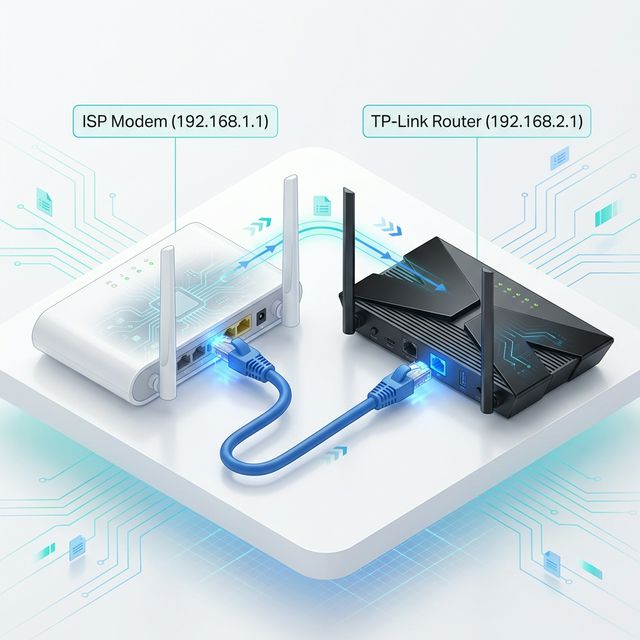
Case: Your ISP modem/router uses 192.168.1.1. You add a TP-Link wifi router that also defaults to 192.168.1.1.
Steps to Fix:
- Setup Separately: Do NOT connect the wifi routers yet. Connect your PC or phone only to the TP-Link router.
- Access Page: Open
192.168.1.1ortplogin.cnin your browser. - Find LAN Settings: Navigate to Routing Settings -> LAN Settings (or Network -> LAN).
- Change IP: Change
192.168.1.1to192.168.2.1. - Save & Reboot: The wifi router will restart. Use the new IP
192.168.2.1for management from now on. - Connect: Plug the cable from the ISP wifi router into the WAN port of the TP-Link.
Scenario 2: Multiple Same-Brand WiFi Routers (e.g., Xiaomi)
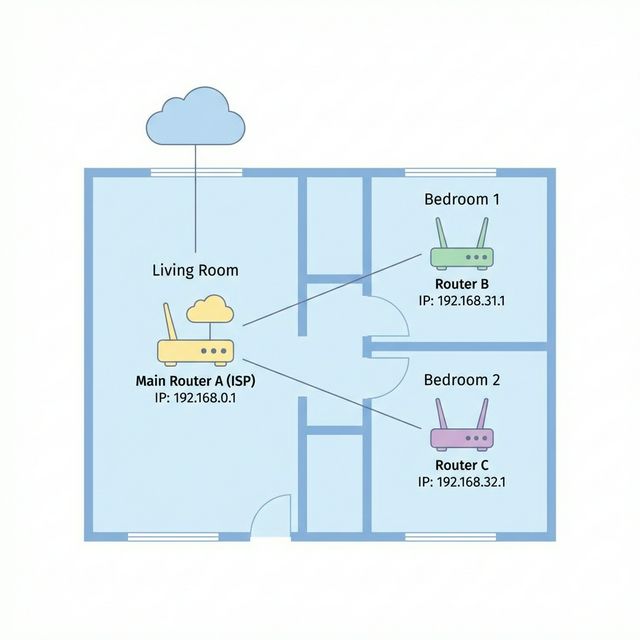
Case: You have two Xiaomi wifi routers (B and C) for different rooms. Both default to 192.168.31.1.
Strategy: Every wifi router on your network MUST have a unique address cluster.
- Main WiFi Router A (ISP):
192.168.0.1 - WiFi Router B: Change to
192.168.31.1 - WiFi Router C: Change to
192.168.32.1
Operation: In the Xiaomi MiWiFi app or web portal, go to Settings -> LAN Settings to make the change.
Pro Tips
- Config Before Connecting: Always change the IP before plugging the wifi routers together to avoid 'hidden' hardware conflicts.
- Use Labels: Put a sticker on the bottom of the wifi router with its new IP address for future reference.
- WAN vs. LAN: For most users, using the WAN port (creating a sub-network) with a different IP segment (like
192.168.2.1) is the easiest and most stable configuration.